Nike Run Club, Strava, Runkeeper, and MapMyRun are options to compare for phone-based tracking. Confirm current free features, audio options, availability, and pricing in their official listings.
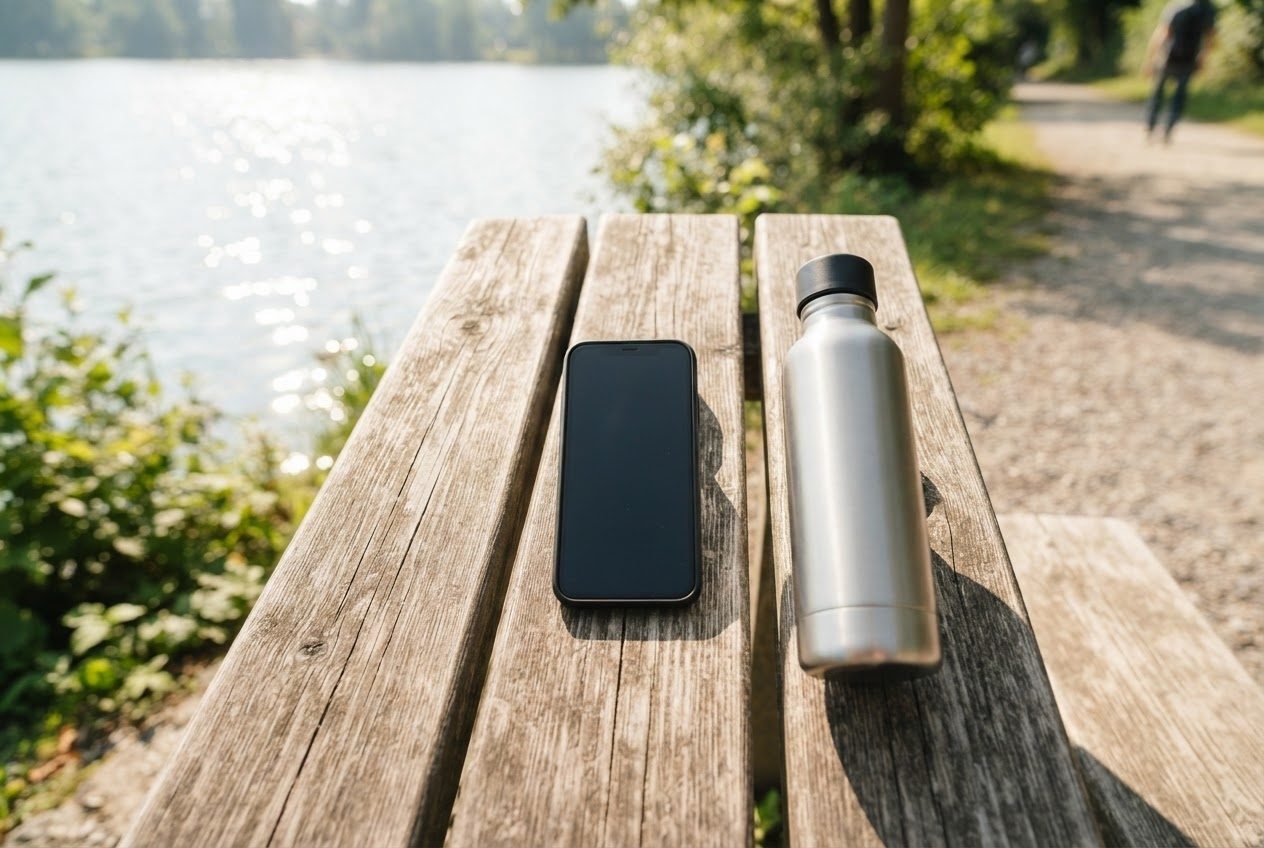
If you're just getting started, any of these four will do the job. The real question is: how do you actually check your progress when your phone is in your hand or pocket? We'll cover that too.
Which free running app is best for beginners?
Compare each app’s current free tools with what you want to track; free tiers and paid features can differ and change.
- Nike Run Club (NRC) — audio-guided runs and a four-week Get Started training plan with NRC coaching. Check which plans are available in your app.
- Strava — record and share activities for free; additional training-analysis features are available with a subscription.
- Runkeeper — audio updates for time, distance, and pace, with time- or distance-based intervals you can configure. Check the available settings and any paid options on your device.
- MapMyRun — web-based route creation and workout stats such as distance, pace, and reported calorie burn. Basic tools are free; MVP adds paid features.
All four work without a GPS watch — they use your phone's built-in GPS, which is accurate enough for most beginner runs.
What should a beginner track?
Keep it simple at first. The three numbers that matter:
- Distance — how far you went
- Time — how long you were out
- Pace — minutes per kilometre (or mile), shown as you run
That's it. Don't worry about heart rate zones, cadence, or VO₂ max yet. Those are fun later — not day one.
If you want a deeper look at using your phone as your only tracking device (no watch needed), this post walks through it step by step: How to track a run with just your phone.

How do you check the app while you're running?
This is the part nobody talks about enough. Glancing at your phone mid-run is awkward — you have to dig it out of a pocket, slow down, squint at the screen, then shove it back. It breaks your flow.
A few solutions:
1. Use the audio cues Check whether your chosen app currently offers audio cues, which intervals it supports, and whether the feature is free. Set it up before leaving, and use audio only where it does not reduce your awareness.
2. Glance at a notification Lock-screen information depends on the app, device, and settings. Test it before leaving, and pause somewhere safe before using a button or reading the screen.
3. Wear your phone on your arm An armband can keep your phone accessible while your hands are free. LULURUN’s mount lets you adjust the viewing angle; pause somewhere safe before checking stats or using the screen.
Step-by-step: how to set up a running app before your first run
- Download your chosen app (Nike Run Club, Strava, Runkeeper, or MapMyRun).
- Create a free account — email or Google/Apple sign-in.
- Set your units to kilometres or miles.
- Check whether your chosen app currently offers audio feedback, which intervals it supports, and whether it is free; set up and test the available option before leaving.
- Allow location access — GPS tracking won't work without it.
- Optionally: pick a beginner plan (NRC has great ones, Runkeeper does too).
- Mount your phone on your arm using a running armband so you can see the screen hands-free.
- Hit "Start Run" and go.
Do running apps drain your phone battery?
Battery use varies; test your chosen app and settings on a short run.
Power-saving modes may limit background tracking; test your app before relying on them.
- Turn the screen off between glances (the app keeps running in the background).
- Follow your device maker's guidance on background activity; on iPhone, close an app only if it is unresponsive rather than routinely swiping away every app.
- Charge your phone the night before long runs.
Related: how to carry your phone comfortably while running
Choose a carry method that fits your phone and clothing securely. Pockets, belts, and armbands can each work; compare their actual comfort and fit. See our phone-carrying guide.
FAQ
Do I need to pay for any of these apps? You do not necessarily need a paid app to begin. Check the current official free features and any trial terms in your region rather than assuming every listed app includes audio cues and run history for free.
Can I listen to music and use a running app at the same time? Yes, in supported setups. Nike Run Club and Runkeeper document music playback alongside tracking, but cue behaviour depends on the app, phone, player, and settings. Test your chosen music and audio cues before leaving rather than assuming every app lowers and restores the volume in the same way.
What if GPS is slow to lock on before I run? Check the app’s current location-permission instructions for your device, and test whether recording works with the screen locked. GPS icons and required permissions differ; do not automatically grant Always access.
Run happy, run free.